

First work out whether the person can't open your help center at all, or can't open one article. Then check the causes for that case.
See what readers see. Open the page in a private window where you're not signed in. Signed in, you can see private articles and team-only categories that your readers can't.
Nobody can open the help center
It's still Private
New help centers start Private, so visitors are asked to sign in. To open it to everyone:
Click the gear icon, then Settings.
Under Access & visibility, choose Public.
Click Save changes.
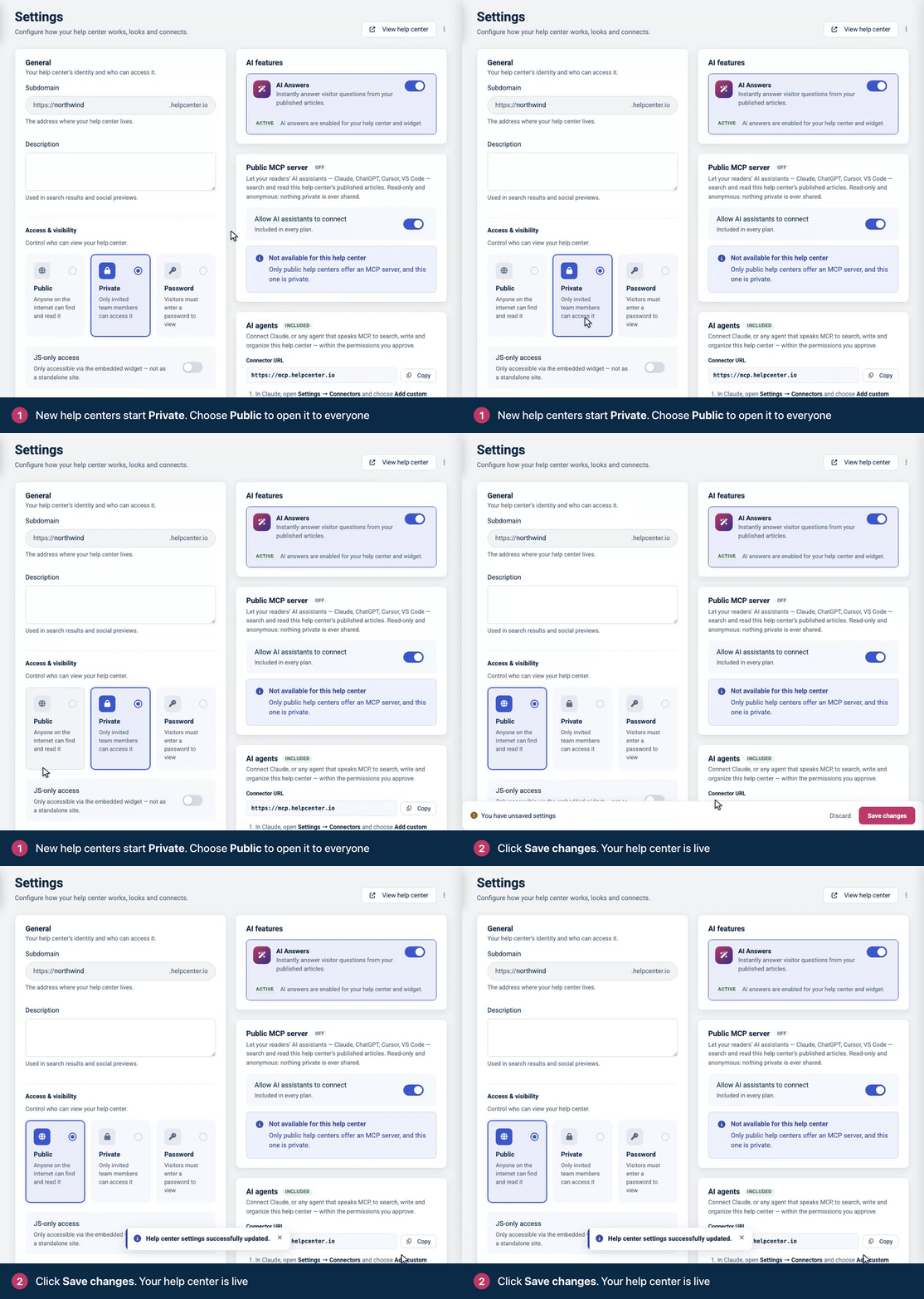
If Public is locked, the text under it says what's missing. "Available once your email is confirmed": the account owner needs to click the link in their verification email first. They can send it again from Account Settings. "Available once your plan is activated": the owner needs to activate a subscription, which they can do during the free trial without losing the days left. See Choose a plan and start your subscription.
It's protected by a password
Visitors see a password page first. Once they enter the right password, the help center stays open for them for 7 days. If you change the password, everyone has to enter the new one. A wrong password shows "That password is not correct. Please try again."
JS-only access is on
With JS-only access, readers can use your help center only through the widget or embed on your website. A direct visit shows "Help center not available." See Show your help center only inside your app.
The subscription has ended
Visitors see a page that says "This Help Center is Taking a Break". See My help center says it's taking a break.
One person can't open the help center
They aren't on the team of a private help center
A private help center opens only for its team members. Invite the person (the Viewer role is enough to read), and ask them to sign in with the address the invitation went to. Signed in with any other account, they land in their own dashboard instead. See Invite your team.
Their network isn't on your IP list
With IP whitelisting on, only the listed IPv4 addresses can open your help center and its widget, team members included. Everyone else is sent to the HelpCenter.io sign-in page, and the widget shows Not available on this network. Add their address (exact addresses only, no ranges) or clear the list. See Restrict access by IP address.
Your help center uses single sign-on
Readers sign in through your own login page. If they come back to "Invalid SSO token.", check your JWT settings and the token your system creates. See Sign readers in with your own login (JWT SSO).
An article shows "page not found"
It isn't published. Readers can't open drafts or unpublished articles. Click Publish.
Its access is Private. Only you and the people you pick can open it.
Its access is Anyone with the link. It opens only from the secret link you get with Copy link in the Access card. The article's normal address shows page not found. See Choose who can read an article.
Its category is hidden. Articles in a category shared with Team members only or Me and selected team members don't open for readers. Everybody with a link (hidden from navigation) keeps the article reachable by its link, but out of lists and search. See Make a category private.
It isn't released in the reader's language. In that language the article shows page not found until you release the translation. See A translation doesn't show.
A teammate can't see an article in the dashboard
The article is Private. Private articles show only for their author and the people they're shared with, whatever their role. The author can add people under Access → Who has access → Share.
The category is shared with selected team members. Articles in a category shared with Me and selected team members show only for the people on its list.
Their role doesn't include the dashboard. Viewers can read your private help center but don't work in the dashboard. Give them the Editor or Translator role to work on articles. See Roles and permissions.
Still stuck?
Contact our support team with the address the person tried to open and the email address they sign in with. See Contact HelpCenter.io support.
Comments
Be the first to comment.