

Save the article, then click the eye icon (Preview article) in the top bar. The preview opens in a new tab and shows the article on your help center, with your design, the way readers will see it.
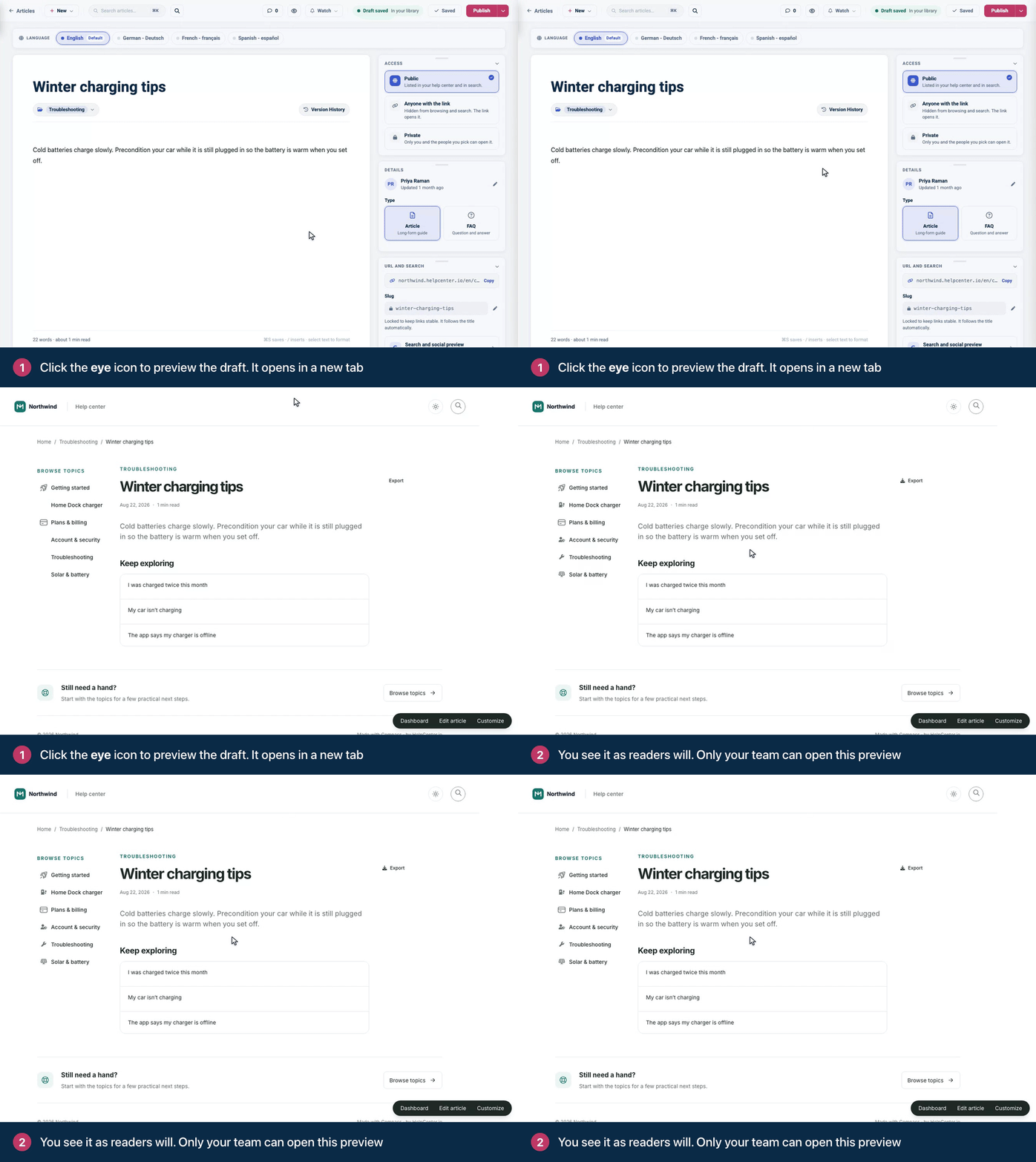
Save first. The eye icon is grayed out until the article has been saved once. The preview shows the last saved version, so click Save draft before you preview your latest edits.
Published articles: your edits are saved when you click Update, which also publishes them. Until then, the preview shows the live version. On help centers with staged changes, click Preview in the staged changes banner to see your edits before they go live.
Who can open it: only teammates who can edit articles (Owners, Admins and Editors). Someone who isn't signed in is asked to sign in first, and anyone else gets a page-not-found page for an unpublished article.
You'll also find Preview article in the menu next to Publish.
Comments
Be the first to comment.