

Attach a PDF, a spreadsheet or another file to an article so readers can download it right where they need it: a price list next to your pricing FAQ, or a template next to the steps that use it.
Who can do this: Owners, Admins and Editors · Plans: All plans
Attach a file
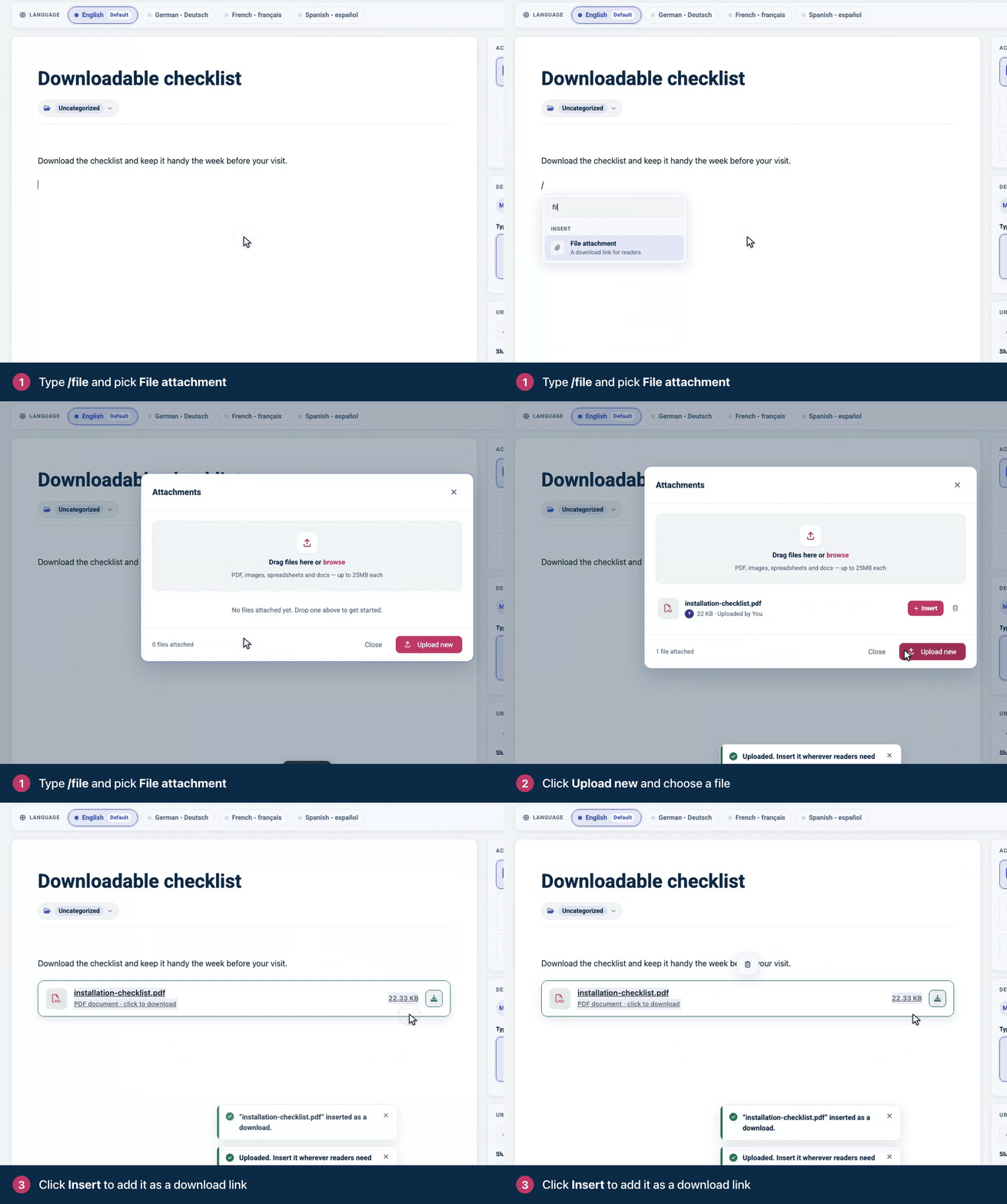
On an empty line, type
/fileand pick File attachment. The Attachments window opens.Click Upload new and choose a file. You can also drag the file onto the box that says Drag files here or browse.
When the upload finishes, click Insert next to the file. It's added to the article as a download link.
You can also click Add on the Attachments card in the right-hand panel. The file goes where your cursor is in the article.
Readers see the file's name, type and size. One click downloads it. The Attachments card lists every file in the article; click one to jump to it.
Reuse a file you already uploaded
The Attachments window lists every file uploaded to your help center, with its size and who uploaded it. Click Insert next to any of them to add it to the article you're writing. There's no need to upload the same file twice.
What you can attach
Files up to 25 MB each, in these formats:
Documents: PDF, Word, Excel, PowerPoint, OpenDocument, RTF, TXT and CSV
Archives: ZIP, GZ, TAR, RAR and 7Z
Images: JPEG, PNG, GIF, WebP, AVIF and HEIC
Audio: MP3, WAV, OGG, AAC and M4A
Video: MP4, MOV, WebM, AVI and OGV
Web pages, SVG files and scripts can't be attached.
Each file gets a long, random web address. Readers find it through your article, but anyone who has that address can download the file, even when the article is private. Keep confidential files out of attachments.
Remove a file
From this article: in the Attachments card in the right-hand panel, click the trash icon next to the file. The file stays in your library for other articles.
From your help center: in the Attachments window, click the trash icon next to the file, then Delete. This deletes the file for good, and its download link stops working in every article that uses it.
Troubleshooting
"Files up to 25MB work here." The file is too big. Compress it, or split it into smaller files.
"Could not upload the file. Please try again." Check that the file is in one of the formats above and under 25 MB, then try again. See An image or file won't upload for more fixes.
Comments
Be the first to comment.