

The hero is the banner at the top of your home page, usually with a big question and a search bar. Change its words, background and height, and decide how its search bar behaves.
Who can do this: Owners and Admins (Editors through Customize on your help center) · Plans: All plans. The Ask AI button needs AI Answers (Catalyst plan, or the AI add-on on Bootstrap and Growth).
Change the hero text
In the template editor, click Select to edit above the preview.
Click the hero's heading or subheading and type your new text.
Press Enter to keep it.
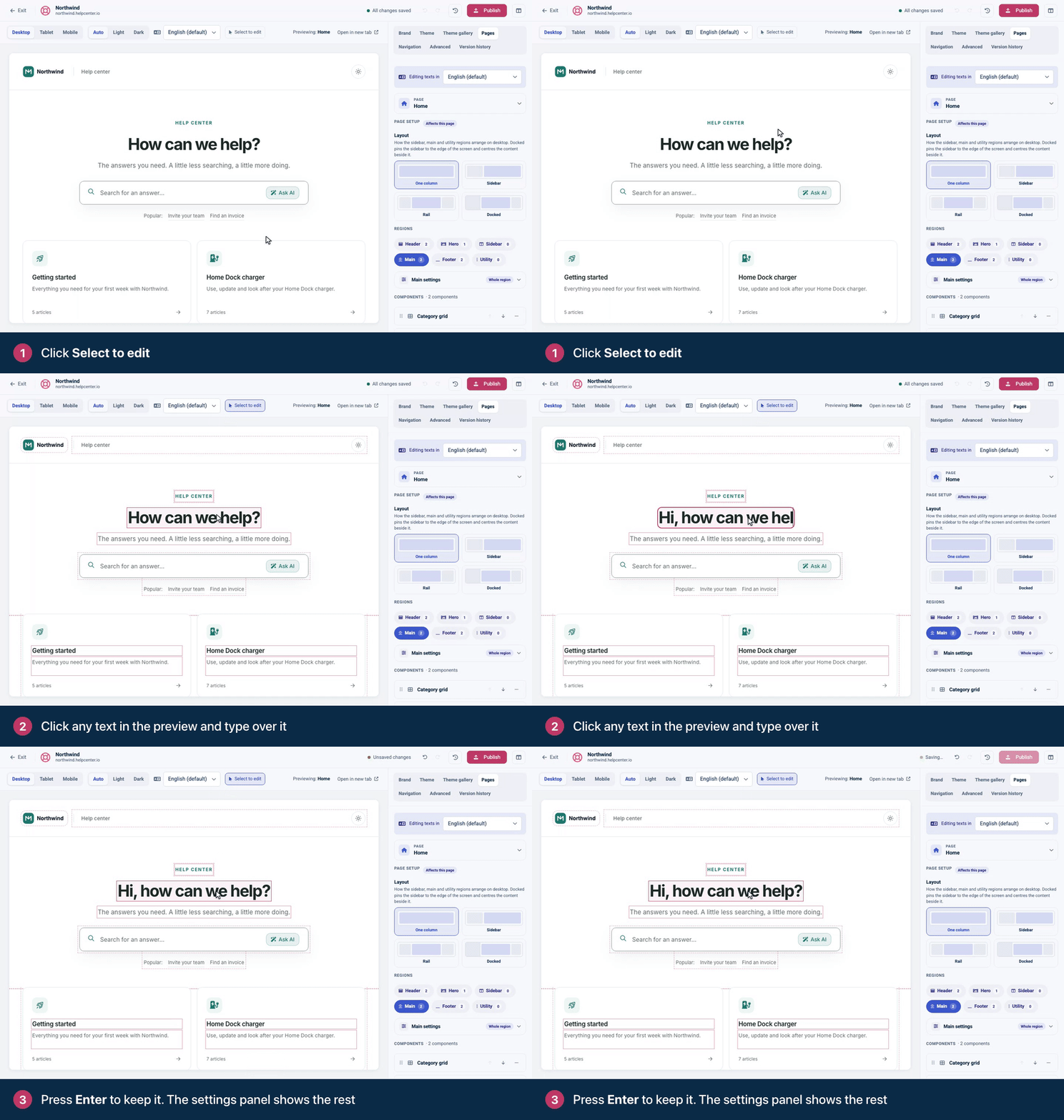
For the other hero settings, click an empty part of the hero, away from the text. Its settings open in the panel on the right.
Click Publish.
You can also get there from Pages → Home → the Hero region → Hero. In Heading and Subheading, you can use a little HTML: <br> for a line break, <strong> for bold and <em> for italic.
Hero options
Option | Choices |
|---|---|
Align | Left, Center or Right. |
Height variant | Compact, Standard or Tall. |
Background | Gradient, Solid or Image. See below. |
Text color | Auto picks light or dark text that reads well on the hero's background, separately for light and dark mode. Light text and Dark text force one color in both modes. |
Backgrounds
Gradient blends two colors. Choose a Gradient style (a two-color blend or a radial glow from a corner), set Gradient from and Gradient to, and pick a Gradient angle. Leave the colors empty to use your theme's Primary and Accent colors.
Solid fills the hero with your theme's Primary color.
Image shows a photo. Under Background image, click Upload for your own, or Unsplash to search free photos (the photographer's credit shows on the hero). Cover enabled darkens the image so text stays readable, and Cover opacity sets how much. Background color shows while the image loads and through transparent parts.
An image can't be measured for contrast, so with an image background set Text color to Light text or Dark text yourself, and check it with the preview's Appearance set to both Light and Dark.
To change the space around the hero or center everything in it, open the Hero region's settings card: Background, Padding, Border below and Content alignment.
What goes inside the hero
A new Hero comes with a Search bar inside it. Click Add inside Hero to add more, such as a Rich text line, a Category grid, FAQs, a Container, a Spacer or a Divider. A Logo, Navigation or Language switcher placed inside the hero sits in a row across its top, over the background.
Search bar options
Click the Search bar (inside the hero, or in your header) to open its settings:
Option | What it does |
|---|---|
Placeholder | The hint inside the empty field, such as "Search the help center…". |
Helper text | A line under the field, for example a few popular topics. |
Size | Compact, Large or Custom. With Custom, set Field width (%) and Field height (px). |
Position | Own row (block), or inline so it shares a row with a logo or menu. |
Background mode | Solid, Translucent (frosted over the hero) or Transparent (blends into the region with a thin outline). |
Corner radius (px) | From square to fully rounded. |
Instant search | Shows matching articles in a dropdown as visitors type. |
Results variant | Simple shows article titles. Detailed adds a short snippet of each article. |
Show button | Shows a search button. Visitors can always press Enter. |
Show "Ask AI" button | Shows the Ask AI button for instant AI answers. It appears only when AI Answers is on. Turn it off to keep AI out of this search bar. |
See How search works in your help center for what search finds, and Turn on AI Answers to add AI.
Container, Spacer and Divider
Container is a box that holds other components, stacked or side by side. Set its Box background (none, surface, muted or your brand color), Padding, Max width, Align and Direction, then use Add inside Container.
Spacer adds empty space. Pick a Size from Extra small to Extra large, or Custom for an exact Height (px) up to 400.
Divider draws a line between two sections. It has no options of its own.
Troubleshooting
The hero text is hard to read on my photo. Set Text color to Light text or Dark text, or turn on Cover enabled and raise Cover opacity.
There's no Ask AI button. AI Answers has to be on for your help center, and Show "Ask AI" button on in the Search bar. See Turn on AI Answers.
My changes aren't on my help center. Click Publish. Changes stay in your draft until you do.
Comments
Be the first to comment.