

Add the Comments component to your Article page in the template editor, then publish. Every article then gets a comment form at the bottom.
In the left menu, click Template editor. Open Pages, pick Article in the page menu, then the Main region.
Under After the article, click Add to "After the article" and pick Comments.
Click Publish.
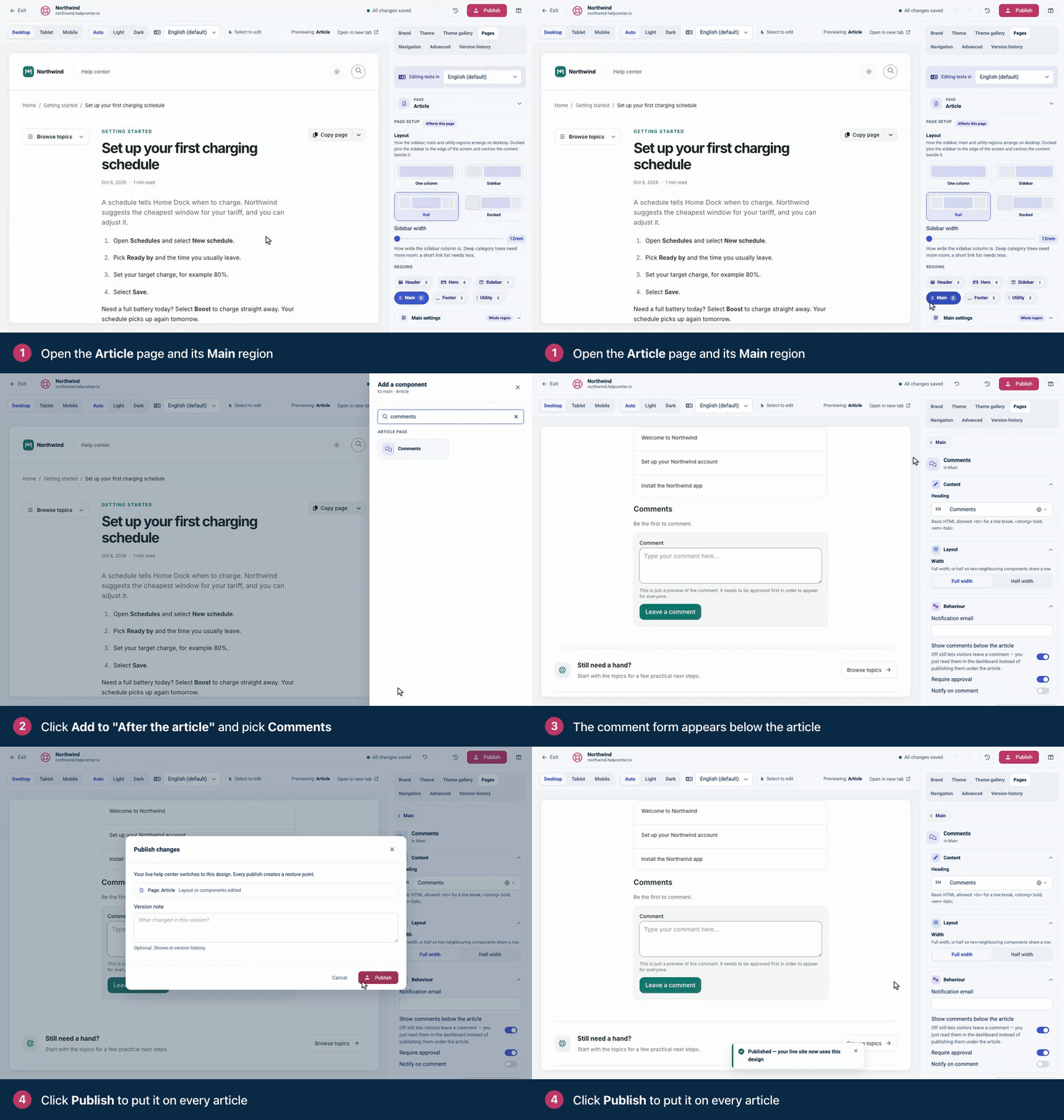
Readers leave their name, email and comment. While Require approval is on, which it is by default, new comments wait for your approval before other readers see them. Approve and answer them in Comments in the left menu, which appears once you publish the design with the Comments component.
Owners and Admins can add the component (Editors through Customize on your help center), and Owners, Admins and Editors can approve comments. It works on every plan.
Comments
Be the first to comment.