

Find out which articles help and which don't. Add a "Was this helpful?" rating so readers can tell you in one click, and comments so they can ask questions right under the article. You add each one once, to the Article page, and every article gets it.
Who can do this: Owners and Admins (Editors through Customize on your help center) · Plans: All plans
Add a rating and comments to your articles
In the left menu, click Template editor. Open Pages, pick Article in the page menu, then pick the Main region.
Under After the article, click Add to "After the article".
Pick Was this helpful? from the list (search for it, or look under Article page). Its settings open.
Click Main at the top of the settings to go back, then add Comments the same way.
Click Publish.
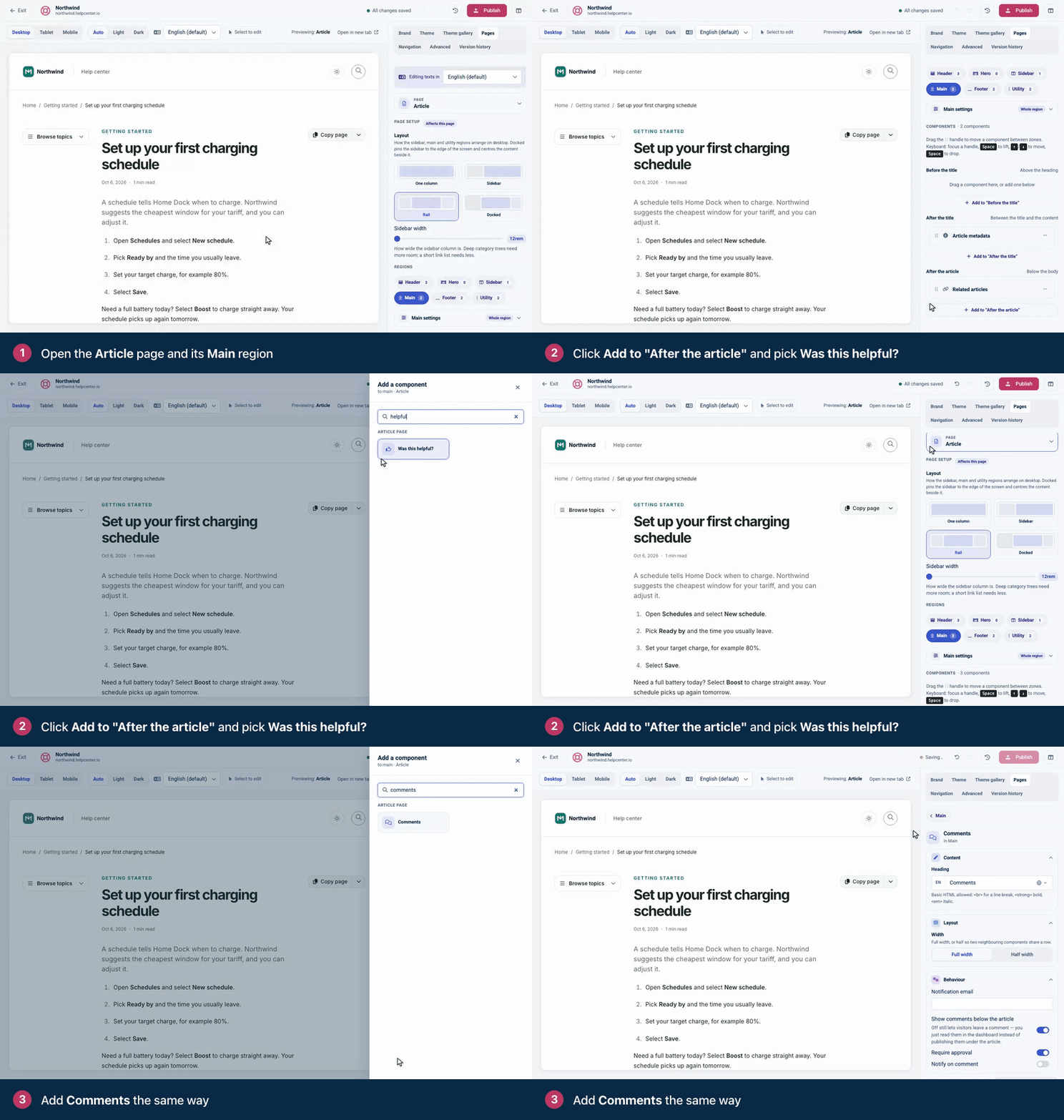
Prefer them somewhere else? Drag a component by its handle into Before the title or After the title, or change the order within a zone.
Set up "Was this helpful?"
Click the component in the Main region to change its settings:
Setting | What it does |
|---|---|
Prompt | The question above the buttons. The default is "Was this article helpful?". |
Scale | Helpful / Love it / Not helpful (3 buttons), shown as a thumbs up, a heart and a thumbs down. Or Thumbs up / down (2 buttons) for the quickest answer. |
Ask for feedback | After a thumbs down, a box opens so the reader can say what was missing. |
Feedback prompt | The question above that box. Make it specific, so the answers are useful. |
Width | Full width, or Half width to share a row with another component. |
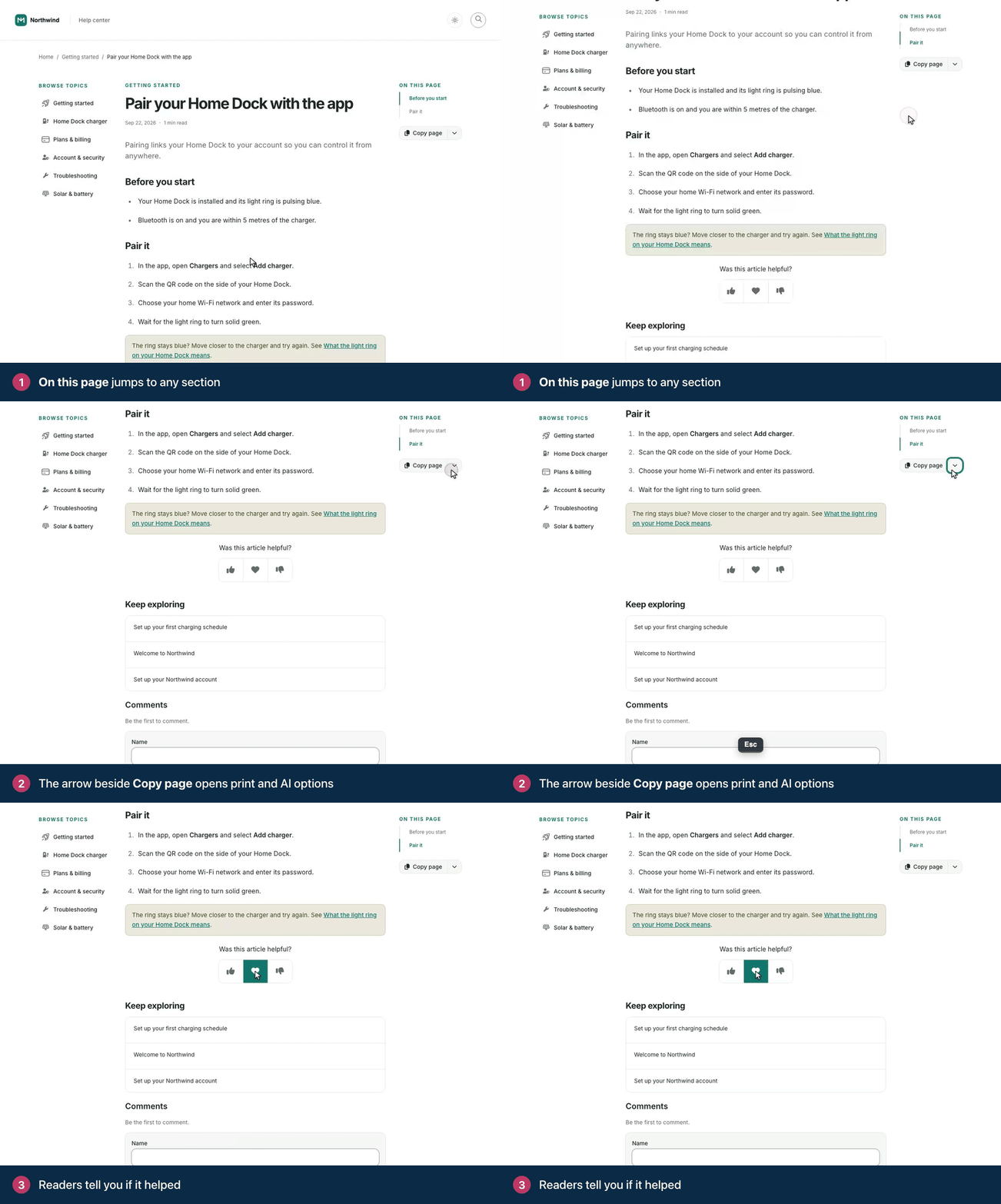
Ratings show up in your statistics and in each article's details. See Article ratings and reader feedback.
Set up comments
Heading: the title above the comments. The default is "Comments".
Show comments below the article: on by default. Turn it off and readers can still send comments, but only your team reads them, in the dashboard.
Readers leave their name, email and comment, then click Leave a comment. They see their own comment straight away. When Require approval is on, the form notes that it needs approval, and everyone else sees it once you approve it. When it's off, the comment is published for everyone straight away. The article's author gets an email about each new comment, not counting replies.
Readers can also click Reply under a published comment. Replies show under the comment they answer and follow the same Require approval setting. A reply to a reply shows in the same thread, with an In reply to link to the comment it answers.
The component also has these settings:
Require approval: on by default. New comments wait for your approval before other readers see them. Turn it off to publish comments straight away.
Notify on comment and Notification email: turn on Notify on comment and enter an address, and that address gets an email about each new comment. Replies to comment emails also go to that address.
These settings take effect when you publish. If your help center was moved from the old template, Require approval is on, whatever you used before: if comments should publish straight away, turn it off and publish.
Approve and answer comments
Owners, Admins and Editors can moderate comments. Click Comments in the left menu: the badge counts comments waiting for you. Approve a comment to publish it under the article, or reply to answer the reader. See Approve and answer reader comments.
Comments appears in the left menu once you publish a design that has the Comments component.
Troubleshooting
The rating or the comment form doesn't show on your articles. Check that the component is on Pages → Article → Main, then publish. Saved changes stay in your draft until you do.
The comment form shows, but no comments. If Require approval is on, new comments wait for your approval. Also check that Show comments below the article is on.
Comments you see in the article editor never appear on your help center. Those are team notes, and readers never see them. Reader comments are separate: they come from the Comments component on your live articles.
Comments
Be the first to comment.