

Readers see a translation only when the language is added, the translation is released and the article itself is published. Check these in order.
The translation isn't released
This is the most common cause. A written translation stays a draft, hidden from readers, search and the widget, until you release it.
Open the article and click the language in the language bar above the title.
Turn on Released. You'll see "[Language] is live for readers now."
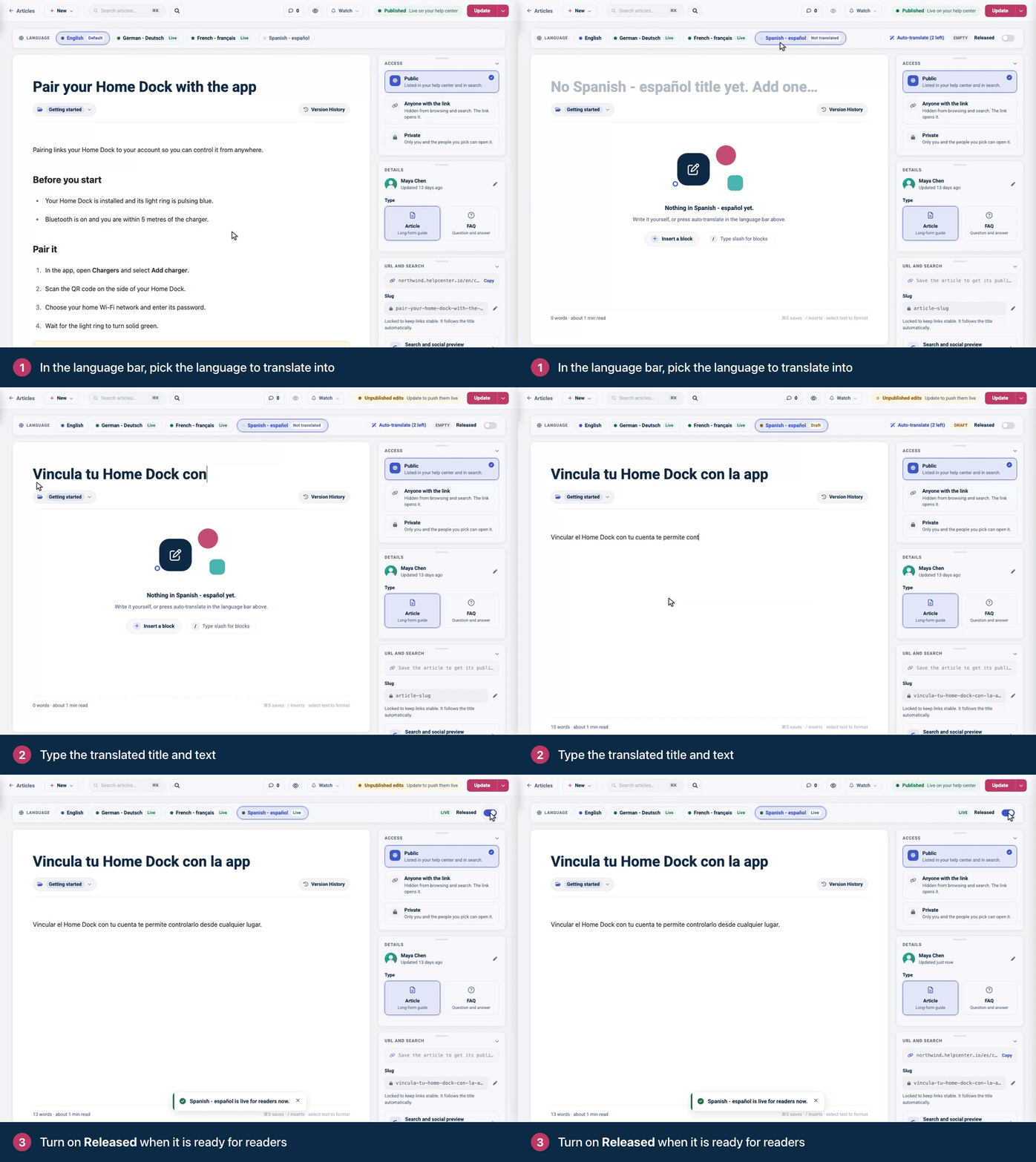
"Add a title and some content before releasing this translation." A translation needs both a title and text in that language.
Many translations waiting? Click the gear icon, then Localization, and release all waiting translations of a language at once. See Release translations and change your default language.
The article isn't live, or your edits aren't
The article is a draft. A released translation goes live together with the article when you publish it.
You edited a released translation. Click Update to put the changes live.
Your help center uses staged changes (Catalyst, in early preview). Edits to a live article, a new translation and its release included, go live when you click Publish changes.
The language isn't added
Every language needs to be added under the gear icon → Localization → Add a language. The Bootstrap plan includes one language, so there Add a language shows "Multiple languages are available on higher plans" instead. Growth and Catalyst include multiple languages. See Add a language to your help center.
The reader is looking at another language
Each language has its own address, such as /de/content/… for German. In a language where the article isn't released, its address shows your not-found page, and category pages and search leave it out. Open the article's address in the language you released, or switch language with the language switcher.
There's no language switcher
Themes include the Language switcher only when your help center already has more than one language. If you set up your design before you added a language, add the switcher yourself:
In the left menu, click Template editor, then Pages.
Open the Header region, click Add component and choose Language switcher.
Click Publish, then Publish again to confirm.
On your live help center, the switcher lists your default language and each language with at least one released article.
Some text is still in your default language
Category names and descriptions are translated in each category's settings.
Buttons and labels, such as "Related articles", are translated under Localization → Interface translations. See Translate buttons and labels.
Headings and other texts in your design are translated in the template editor. See Translate texts in your design.
Still stuck?
Contact our support team with the article's address and the language that doesn't show. See Contact HelpCenter.io support.
Comments
Be the first to comment.