

Two-factor authentication (2FA) protects your account even if someone learns your password. After you enter your password, you also type a code from an authenticator app on your phone.
Who can do this: Everyone, for their own account · Plans: All plans
Before you start
Install an authenticator app on your phone, such as Google Authenticator, Microsoft Authenticator, 1Password or Authy.
If you created your account with Google, set a password first. Until you do, Security Settings says "Set a password first. Enabling two-factor authentication asks you to confirm it." See Change or reset your password.
Turn on 2FA
At the bottom of the left menu, click your avatar, then Account Settings.
Under Security Settings, click Enable 2FA.
In Confirm Password, click the Password field, type your password and click Confirm.
Open your authenticator app and scan the QR code.
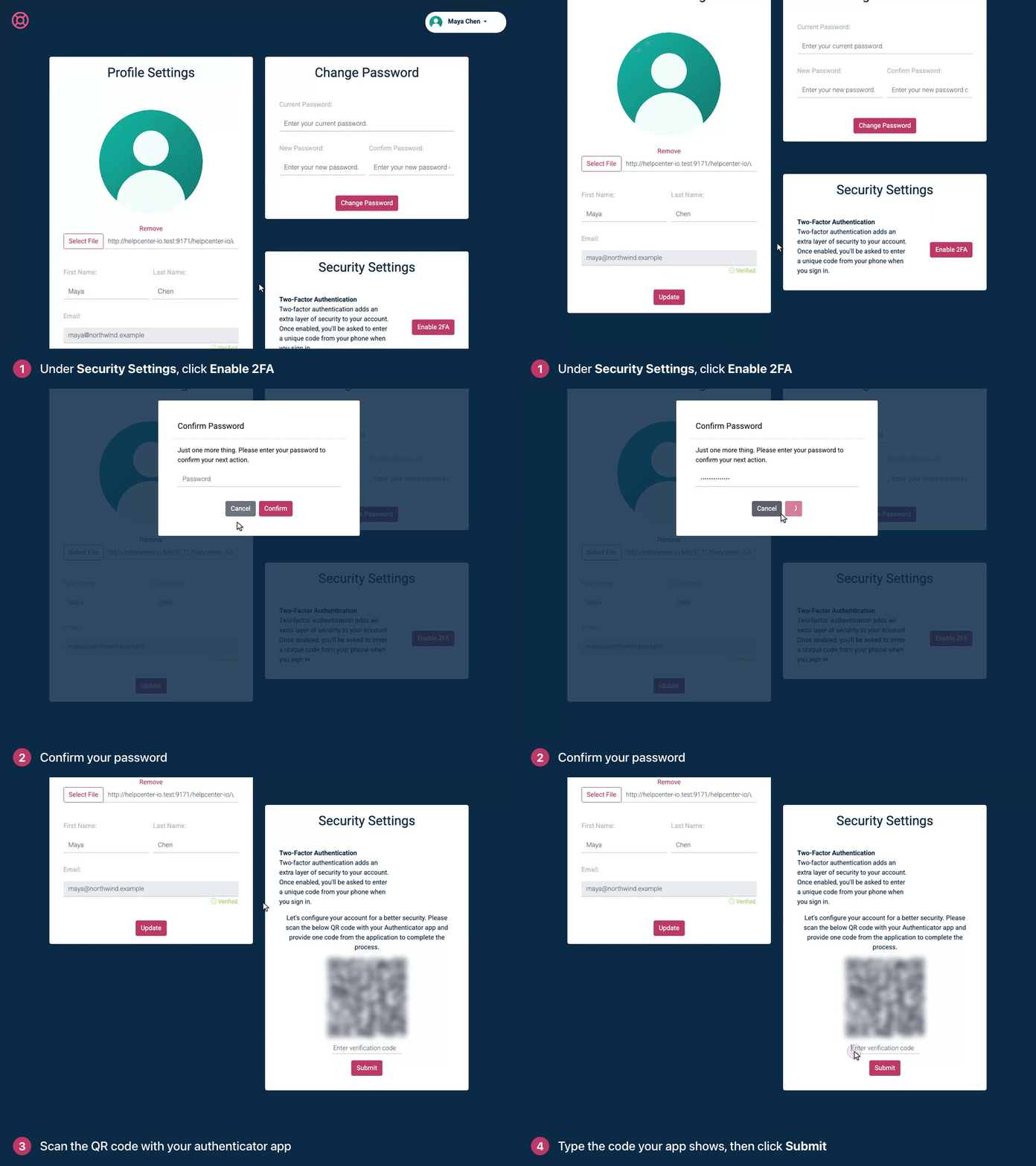
Type the code your app shows into Enter verification code, then click Submit.
Click Show 2FA Recovery Codes, then Download Recovery Codes, and keep the file somewhere safe.
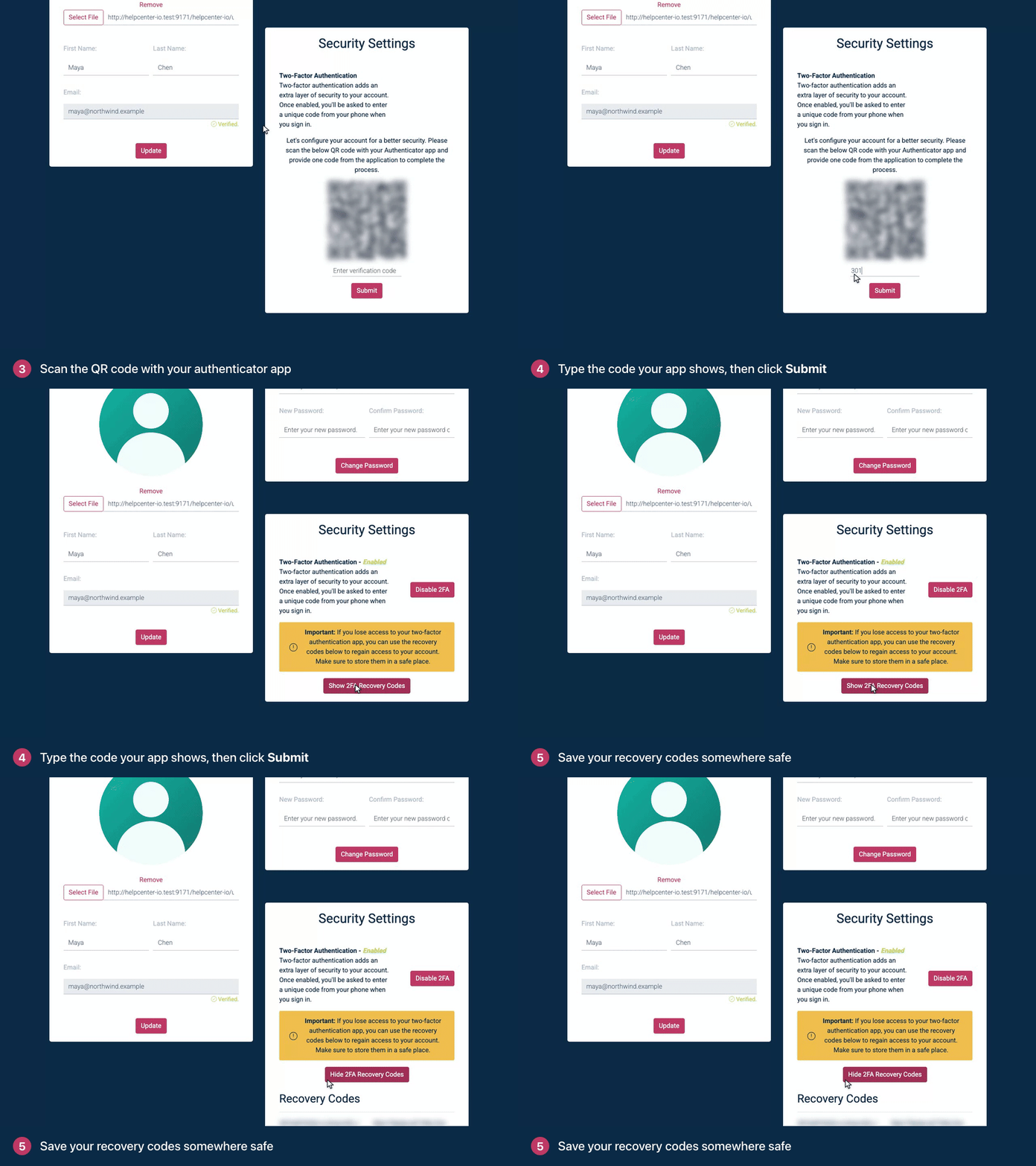
If you lose your phone: the sign-in page doesn't accept recovery codes, so contact our support team to get back into your account. See I lost my authenticator device.
Sign in with 2FA
From now on, after your email and password, or after Continue with Google, the Enter your code page asks for a code. Type the code your app shows under Authentication code and click Verify and continue.
Turn off 2FA
In Account Settings, under Security Settings, click Disable 2FA.
Type your password and click Confirm.
You can then delete the HelpCenter.io entry from your authenticator app.
Troubleshooting
"That code was not accepted. Check your authenticator app and try again." Codes change every 30 seconds, so type the one showing now. If codes keep failing, check that your phone sets its date and time automatically.
Nothing happens when you type your password to confirm. Click inside the Password field first, then type.
You left before entering a code. Open Account Settings again. The QR code is still there, so you can finish setting up.
Too many wrong codes at sign-in. Wait a minute, then try again.
Comments
Be the first to comment.