

Paste your website's address and the AI theming agent reads your brand from it: your colors, fonts, logo and favicon. It proposes a matching theme for light and dark mode, you choose which parts to apply, and readers see nothing new until you publish.
Who can do this: Owners and Admins (Editors through Customize on your help center) · Plans: All plans, including the free trial. Changing the theme by chat is on Catalyst
Get a proposal from your website
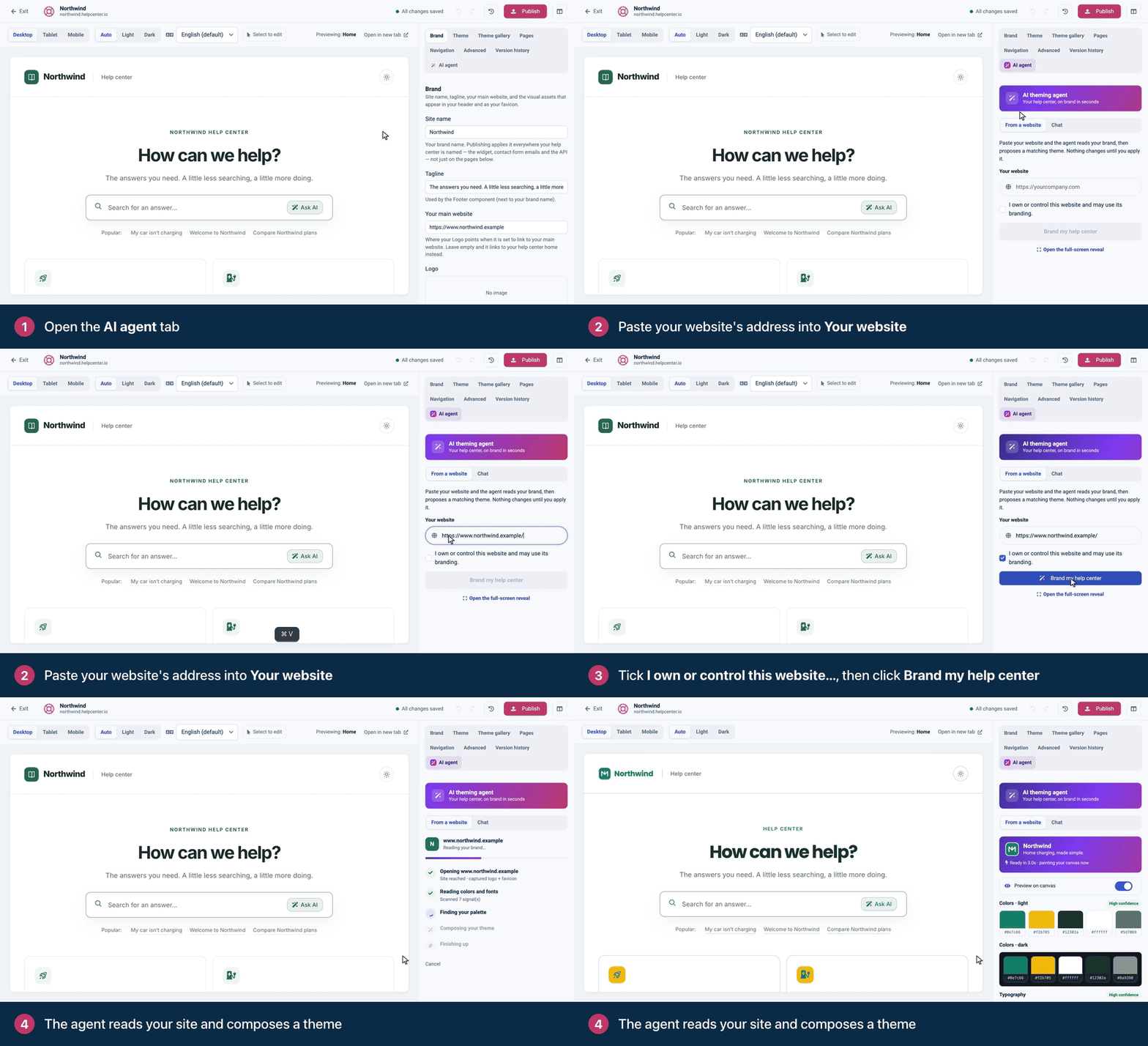
In the left menu, click Template editor, then open the AI agent tab and make sure From a website is selected.
Under Your website, enter your site's full address, starting with https://. For example: https://www.northwind.example
Tick I own or control this website and may use its branding. The agent brings that site's logo, favicon and colors into your help center, so point it at a website that's yours.
Click Brand my help center. The button stays grey until the address is filled in and the box is ticked.
The panel shows Reading your brand… while the agent opens your site, reads its colors and fonts and composes the theme. Cancel stops it.
Review the proposal
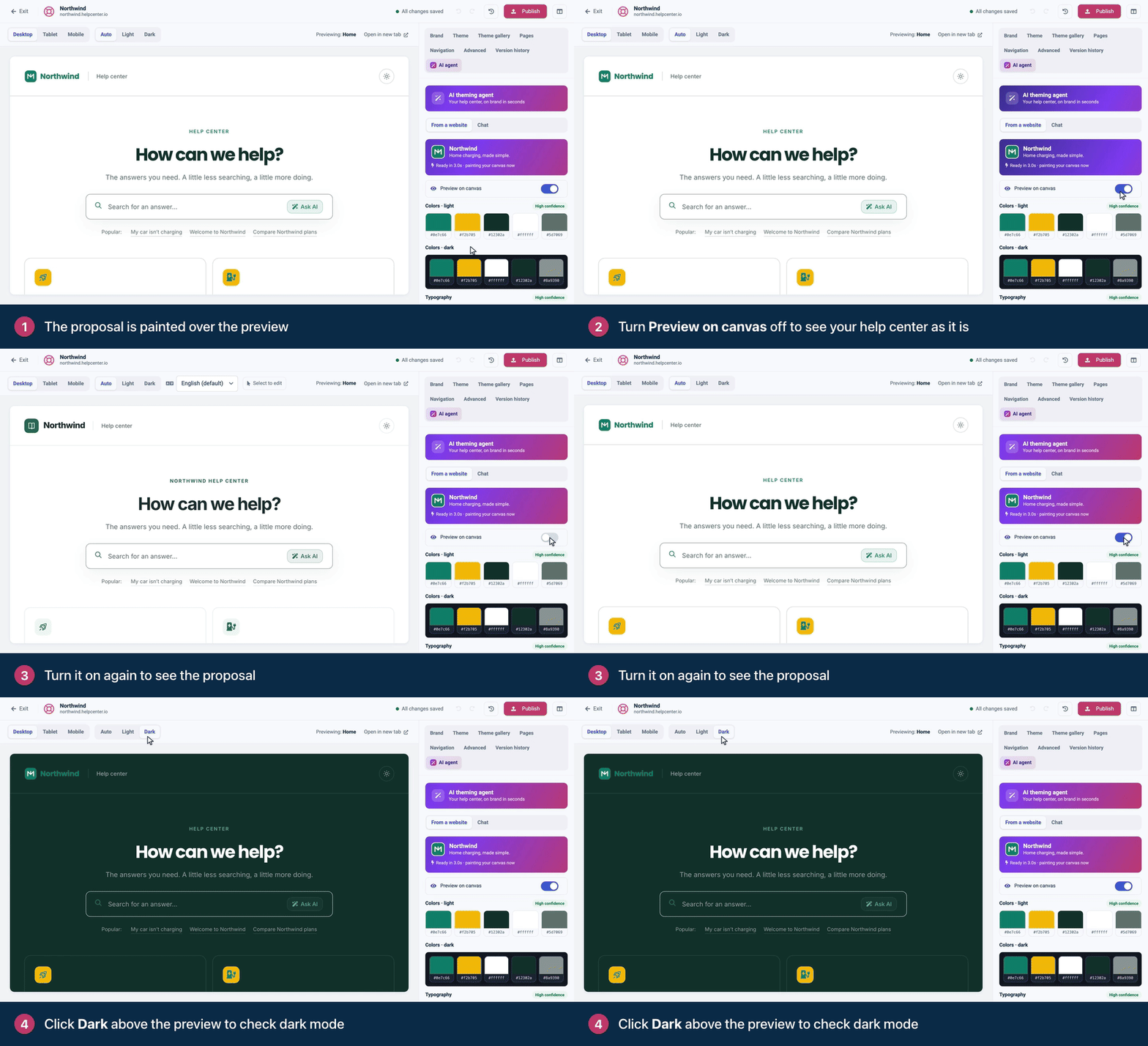
When the run finishes, the proposal is painted over the preview and listed in the panel. Your draft and your live help center haven't changed yet.
Preview on canvas switches the preview between the proposal (on) and your help center as it is now (off), so you can compare the two.
Colors · light and Colors · dark show five of each mode's seven colors: primary, accent, foreground (your text color), background and muted text. Click a swatch to copy its hex code.
Typography shows a sample of the Heading and Body fonts, with their names.
Labels say how sure the agent is: High confidence, Medium confidence or Low confidence.
Colors get High confidence when the primary color is one your website declares as its own, such as its browser theme color or the color of its logo. Fonts get it when the heading font is one your website uses and the font library has. Look closer at anything marked Medium or Low before you apply it.
Every proposal comes in light and in dark. Above the preview, click Dark and Light to check each mode, and Mobile to check a phone. See Preview on phones, tablets and in dark mode.
Take your time: a proposal you haven't applied or discarded comes back when you reload the editor, as long as the draft hasn't changed in between.
Apply it to your draft
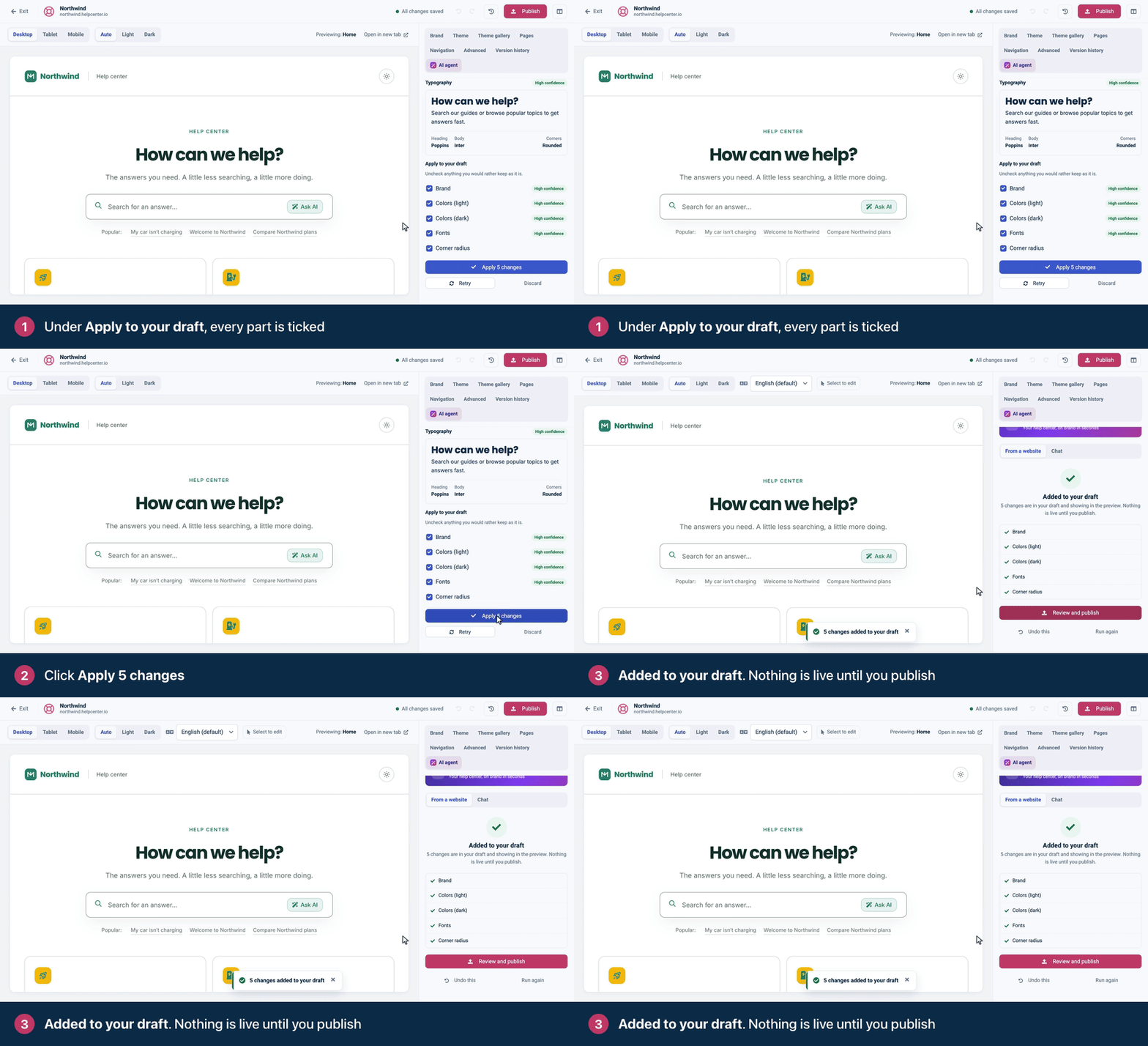
Under Apply to your draft, untick anything you would rather keep as it is. The list holds only the parts that differ from your current design.
Click the button under the list, for example Apply 5 changes. Its number follows the parts you left ticked.
The panel confirms with Added to your draft. The parts you ticked are now in your draft and in the preview, and nothing is live until you publish.
Part | What applying it changes |
|---|---|
Brand | Your site name, tagline, logo and favicon, together. The agent writes the name and tagline from your website's page title. |
Colors (light) and Colors (dark) | The seven colors of each mode. |
Fonts | The heading and body fonts, and the monospace font when the agent proposes one. |
Corner radius | How round corners are. The agent doesn't read this from your website. It proposes its own standard corners, so untick it to keep the corners your theme has. |
Density | Listed only when your theme's density isn't Comfortable. It isn't read from your website either, so untick it to keep your spacing. |
Brand is a single part: you can't take the logo without the name. If the proposed name isn't right, apply it and then correct Site name in the Brand tab before you publish: publishing uses that name everywhere your help center is named, including the widget and contact form emails. See Add your logo, favicon and brand name.
Run it again with a hint
If the proposal isn't what you hoped for, you don't have to apply it.
Click Retry, type a short hint in your own words (up to 300 characters), such as "too dark, lean into the purple", and click Run again. A hint lets the agent adjust the colors, fonts, corners and density of the next proposal, so they can move away from what your website uses.
Click Discard to drop the proposal and take it off the preview.
Publish it, or go back
Click Review and publish in the panel, or Publish in the top bar. Check the list of changes, then click Publish. Publishing puts your whole draft live, including any other unpublished changes. See Publish your design.
Changed your mind?
Right after applying: click Undo this, and your draft goes back to how it was. The button is there while the panel shows Added to your draft, so use it before you leave the AI agent tab or reload the editor.
Later, before you publish: change the parts back by hand in the Brand and Theme tabs, or use Reset draft (the clock icon in the top bar), which discards every unpublished change, not only the agent's. The undo arrows in the top bar start fresh when you apply a proposal, so they can't step back over it.
After you publish: open Version history and click Restore next to the version from before. It goes live at once. See Restore an earlier design.
What the agent reads, and what it leaves alone
The agent reads one page: the address you enter, with its styles, logo and favicon. It doesn't visit your other pages or sign in anywhere. When it fetches the page, its styles and its images, it identifies itself to your web server as HelpCenterThemingBot/1.0.
Colors. The primary color is taken from the colors your page uses, and the accent too when your page has a second brand color. The agent derives the other colors around them, once for light mode and once for dark. If it finds no usable color, the proposal falls back to a default palette, marked Low confidence.
Fonts. The agent proposes fonts only when your website uses one that is also in the font library your help center loads its fonts from. A font you host yourself or license isn't in that library, so your current fonts stay. You can add yours by hand: see "Upload your own font" in Change colors, fonts and spacing.
Logo. A PNG, JPEG, GIF or SVG file of up to 256 KB, saved as a PNG. A one-color SVG logo, whatever its color, is redrawn in black as your logo and in white as your dark-mode logo. Any other logo is used as it is, and your dark-mode logo isn't changed, so check the preview in Dark.
Favicon. A PNG, JPEG, GIF, ICO or SVG file of up to 64 KB.
A run from a website changes brand and theme settings only. It never touches your pages, components, navigation, custom CSS or scripts, your SEO settings, your translated design texts, or your articles and categories.
Limits
Each help center gets 3 runs from a website a day, or 10 on Catalyst and on older plans that include AI. The count starts again at midnight UTC.
Every run that starts counts, including a retry, a run you cancel, a run that fails and a brand reading you started in the setup wizard. An address that is refused before the run starts doesn't count.
Each help center also has a monthly fair-use allowance for the agent. It resets on the 1st.
Fine-tune it afterwards
By hand, on every plan: set colors and fonts in the Theme tab, and your name, logo and favicon in the Brand tab. To set everything by hand from the start, see Make your help center look like your brand.
By chat, on Catalyst: the Chat mode of the AI agent tab takes requests in plain language. It's included on Catalyst and on older plans that include AI. The AI add-on doesn't include it, and on other plans Chat shows Upgrade to Catalyst. See plans and pricing.
No website to start from? Begin with a ready-made design instead: see Which theme is right for you?
Troubleshooting
There's no AI agent tab. It's the last tab of the template editor's settings panel, after Version history. If your template editor has no tabs like these, see Which template editor does my help center use?
Your browser asks for a URL. Enter the full address, including https://.
The panel says "I could not reach" and your website's name. It shows this heading, and the same short list of things to check, whenever a run can't start or finish, whatever the cause. Go by the line under the heading:
The line says | What to do |
|---|---|
"We could not fetch that site. Check the URL and try again." | The agent couldn't connect to your website, or the connection failed or timed out. Check that the site is up and reachable from the public internet, then click Try again. A page that redirects more than three times, or to an address that isn't https, can't be read. |
A short code such as | The address was refused before the run started. Click Different address, check it for typos, and make sure it starts with https://, has no port number and is the public name of a website, not an IP address or an internal address. |
"You've used today's 3 branding runs for this help center. Try again tomorrow." | You've reached the daily limit for this help center. See Limits above. |
"This help center has reached its AI theming allowance for this month. It resets on the 1st. Upgrade for a larger allowance." | Wait for the 1st, or move to a plan with a larger allowance. |
Anything else, such as "The AI service didn't respond, so nothing was changed. Please try again in a minute." or "The theming agent did not finish in time." | The run failed and nothing was changed. Click Try again, or come back a little later. |
"The draft changed after this proposal was created. Run the agent again so your newer edits are preserved." You or a teammate changed the design after the proposal was made. Run the agent again.
The panel says Limited branding found, or the proposal looks nothing like your website. The agent reads the page your server gives it. If that's a login page, a cookie wall or a bot check, that page gets read instead of your site. Enter a public page that shows your brand, such as your home page, and if your firewall blocks automated visitors, allow HelpCenterThemingBot/1.0. Then retry, with a hint if you like.
The fonts didn't change. Your website's fonts aren't in the font library, so the agent kept the ones you have. Upload your brand font in the Theme tab.
The logo is missing, black, or not the one you expected. The agent looks for the logo your page declares or shows in its header, and falls back to your site's touch icon or favicon. It skips a file that is too big or in another format, such as WebP, and a PNG or GIF smaller than 32 pixels a side, and tries the next one. A logo more than 2048 pixels wide or tall is left out. A one-color SVG logo comes out black in light mode. To use your own files, upload them under Logo and Dark-mode logo in the Brand tab.
Comments
Be the first to comment.