

The header is the first thing readers see: your logo, a welcoming heading, the search field and a menu of links. In the classic template editor you choose its style and colors, set up the search field and build the menu.
Who can do this: Owners and Admins · Plans: All plans
Everything below is in the Header group: in the left menu, click Template editor, then Header. You can also click the header in the preview. Your changes save to a draft automatically, and readers see them after you click Publish. See Save, preview and publish in the classic editor.
Choose the header style
Under Header Style:, click one of the two pictures:
The first picture is the standard header: a wide band with your logo and menu, a heading, an optional subheading and a large search field.
The second picture is the minimal header: one slim bar with your logo, a search field and the menu. It has no heading, subheading, cover or text under the search field, and of the settings under Content, only Logo Link: applies to it.
Set colors and a background image
Under Appearance:
Background Color: fills the header. Until you set one, it's a dark blue.
Text Color: colors the heading, the subheading and the menu links.
Header Background Image puts a picture behind the header. Turn it on, then click Upload File, paste an image address into Header background URL, or open Unsplash Library to search free photos and click one. Open Advanced to set the image's Position, Image size, Repeat, Scroll behavior and Color blend. A photo from the Unsplash Library adds a "Photo by ... on Unsplash" credit at the bottom of your pages.
Show header cover lays a dark layer over the header, which keeps white text readable on a busy photo. Set how dark it is in Header Cover Transparency: with a number such as 0.7: the higher the number, the darker the layer.
The classic editor has no setting for a gradient background.
Set up the search field
Under Search:
Show detailed instant search results: the results that appear while a reader types show a snippet of matching text with the search words highlighted, not only article titles.
Border Radius: rounds the corners of the search field, in pixels. The default is 5.
Search Field Placeholder: the hint inside the empty field. The default is "How can I help?".
Set the heading, logo and layout
Under Content:
Setting | What it does |
|---|---|
Logo Link: | Link to Parent Website sends readers who click your logo to the Connected Site you set under General. Link to My Help Center Homepage keeps them in your help center, which is also what happens if you pick neither or have no Connected Site. |
Logo Position: | Left (the default) or Center. |
Content Position: | Lines up the heading and search field on the home page: Center (the default) or Left. |
Vertical Space: | Adds room above and below the heading on the home page: None (the default), Small, Medium, Large or Extra Large. |
Show header heading | Shows or hides the heading. It's on by default. |
Header Heading | The big heading. Until you change it, it reads "Help Center". |
Header Subheading | An optional line under the heading. |
Minimal header on all pages except homepage | On by default: category, article and other pages get a compact header with your logo, menu and search field. Turn it off to show the full header, with the heading, on every page. |
Categories under search field: | Click category names to show them as quick links under the search field. Click a name again to remove it. |
Text to display under the search field: | A short label in front of those links, such as "Popular Topics:". |
You can also click the heading or subheading in the preview and type. To resize the heading, point at it, click the small ruler icon and set its Size.
Add links to the menu
Scroll down to Custom Menu and click Add.
Type the Link Text and the URL.
Optionally, turn on Language-specific URL to enter a different address for each of your languages, or click Show Advanced and add Class Names to the link, separated by spaces and without the leading dots. For example,
btn btn-primaryshows the link as a button.Click Save.
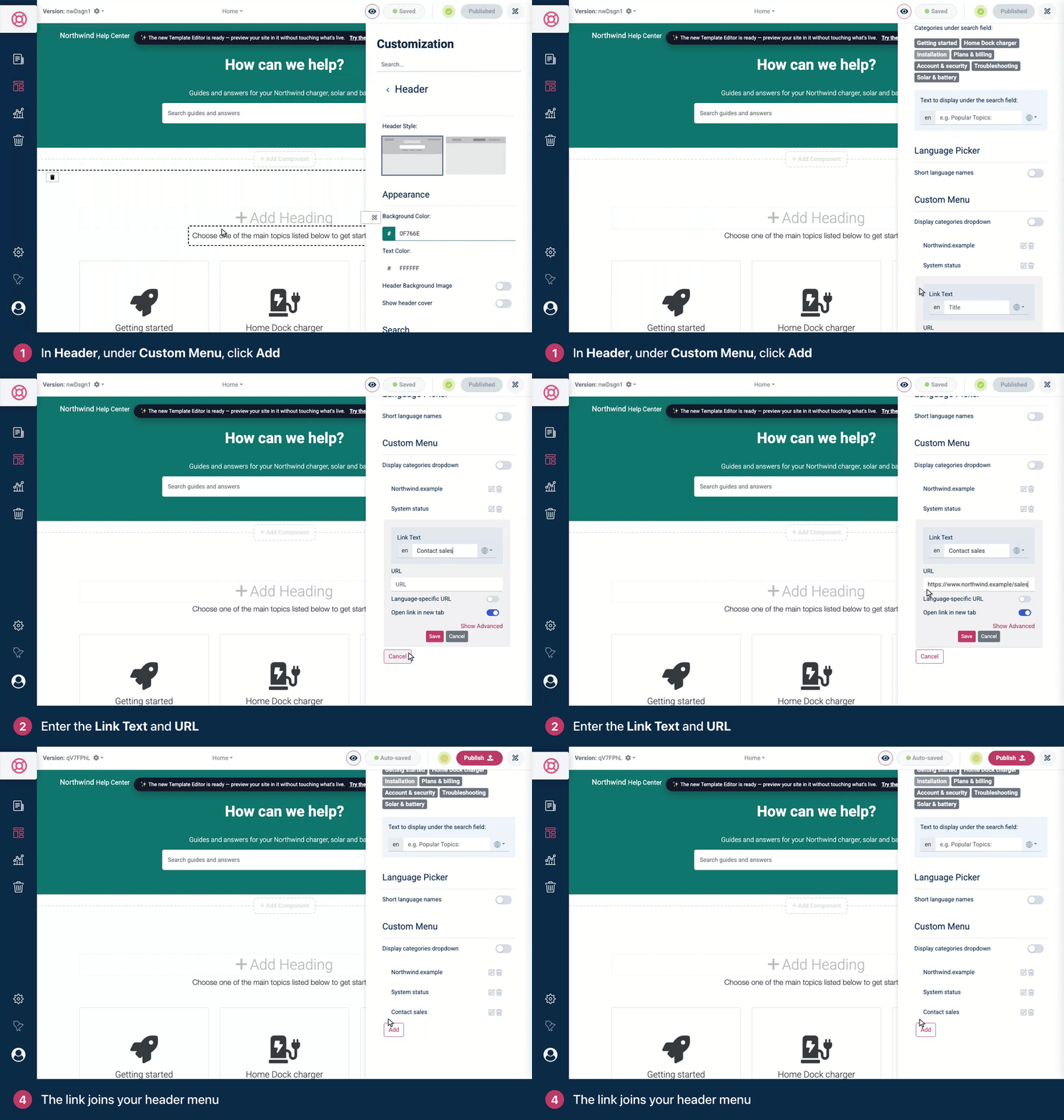
Change the order by dragging the links in the list. Edit or delete a link with the pencil and trash icons next to it.
Menu links open in a new tab. A link you add opens in a new tab even if you turn Open link in new tab off while adding it. To open it in the same tab, click its pencil icon, turn Open link in new tab off and click Save.
Display categories dropdown adds a "Categories" menu that lists your top-level categories.
The Contact Us button in the menu comes from the contact form settings. See Set up the contact form in the classic editor.
When there are no links, no Contact Us button and no language picker, the standard header shows no menu at all, not even the categories dropdown.
Show a language picker
When your help center has more than one language, readers can switch languages in a picker in the menu. It appears once at least one article has a finished translation. Under Language Picker, turn on Short language names to show each language only by its own name, such as "Deutsch". See How readers see other languages.
Troubleshooting
"Please fill in link text and URL." A menu link needs both. Fill in the empty one and click Save.
The heading doesn't show. Check that Show header heading is on and that you picked the first Header Style: picture. The minimal header has no heading.
My logo links to my help center, not my website. Choose Link to Parent Website and fill in Connected Site under General.
The language picker is missing. It shows only when your help center has another language and at least one article is translated into it. See Translate an article.
Comments
Be the first to comment.