

Changed your mind about the new template editor, or need more time to get the design right? You can go back to the classic template editor at any time. Your classic design was kept exactly as you left it.
Who can do this: Owners and Admins · Plans: All plans
Before you've published in the new editor
While you're only trying the new editor, visitors still see your classic design, so there is nothing to undo. Click Exit in the top bar, or open Advanced and click Switch back to the classic editor. Both take you to the classic editor, and your new-editor draft stays saved for later.
After you've published in the new editor
In the left menu, click Template editor.
Open the Advanced tab and scroll to Classic editor.
Click Switch back to the classic editor.
In the dialog Switch your live site back to the classic theme?, click Switch to classic.
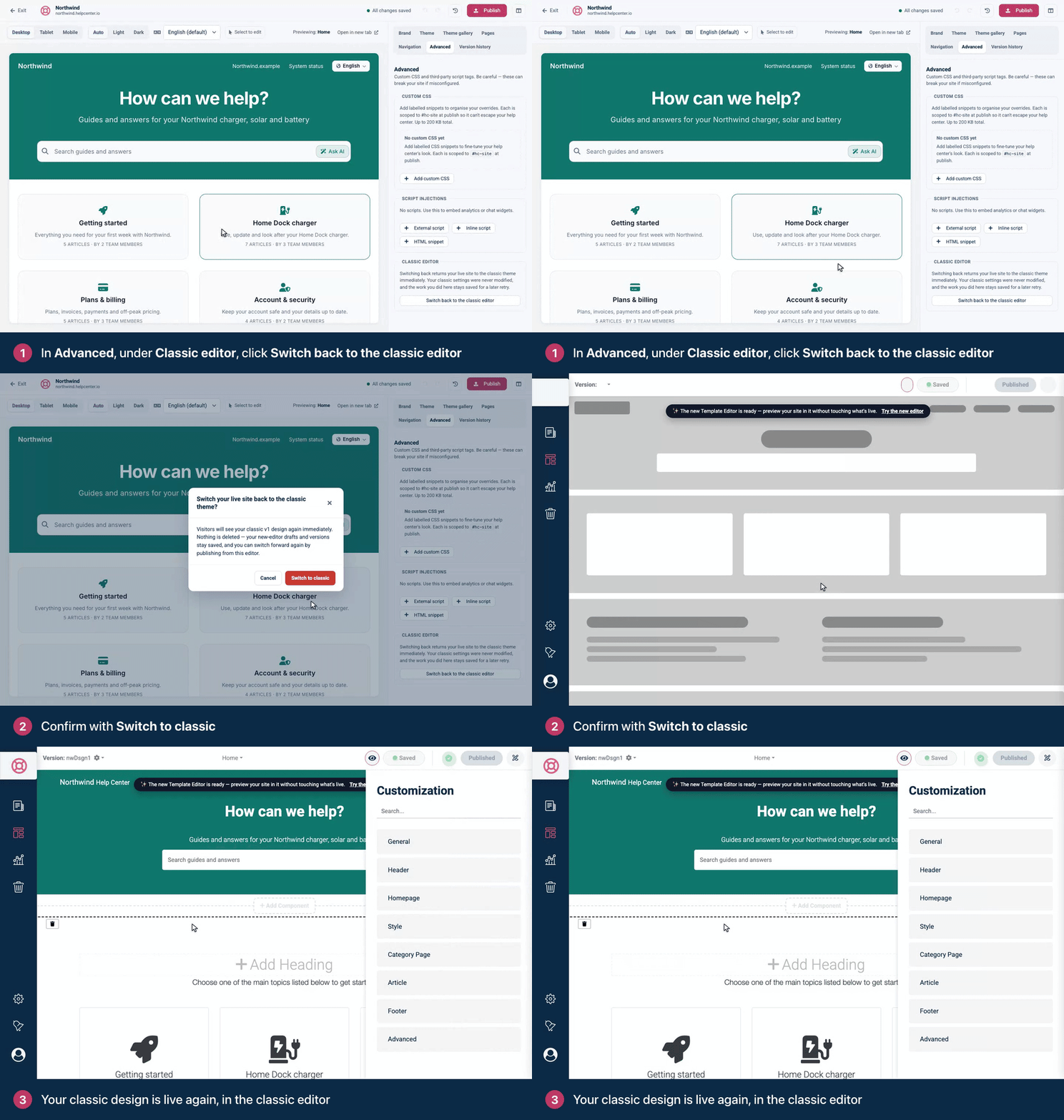
Your live help center shows your classic design again right away, and the classic editor opens.
Just published? Reload the new editor before you switch back. Right after your first publish, the button only reloads the new editor, without switching. After a reload it works as described.
What you get back, and what stays
Your classic design is unchanged. The classic editor opens with the settings you had before you moved. Changes you made in the new editor don't carry back.
Your new-editor work stays saved. Your drafts and published versions are kept, so you can return to them.
Your name and website address stay as you last set them. If you changed Site name or Your main website under Brand in the new editor, the classic editor shows the new values in Brand Name and Connected Site.
Your content isn't affected. Articles, categories, translations and web addresses stay the same either way.
Move to the new editor again later
In the classic editor, click Try the new editor in the dark bar near the top.
Make your changes, then click Publish.
The new editor opens your earlier new-editor design, not a fresh copy of your classic one. Changes you made in the classic editor in the meantime aren't in it, so make them again in the new editor before you publish.
Comments
Be the first to comment.