

Put a manual, a price list or a policy right inside an article, as a viewer readers page through without leaving your help center. They can still download the file whenever they want.
Who can do this: Owners, Admins and Editors · Plans: All plans
Readers get the viewer on article pages of help centers that use the new template editor. Everywhere else, the same PDF shows as a download link. See Which template editor does my help center use? if you're not sure which one you have.
Embed a PDF
On an empty line, type
/pdfand pick PDF viewer. The Embed a PDF window opens.Click Upload new and choose a PDF of up to 25 MB. You can also drag the file onto the box that says Drag a PDF here or browse.
Wait for the upload to finish. The file is embedded straight away, and the viewer opens in the article the way readers will see it.
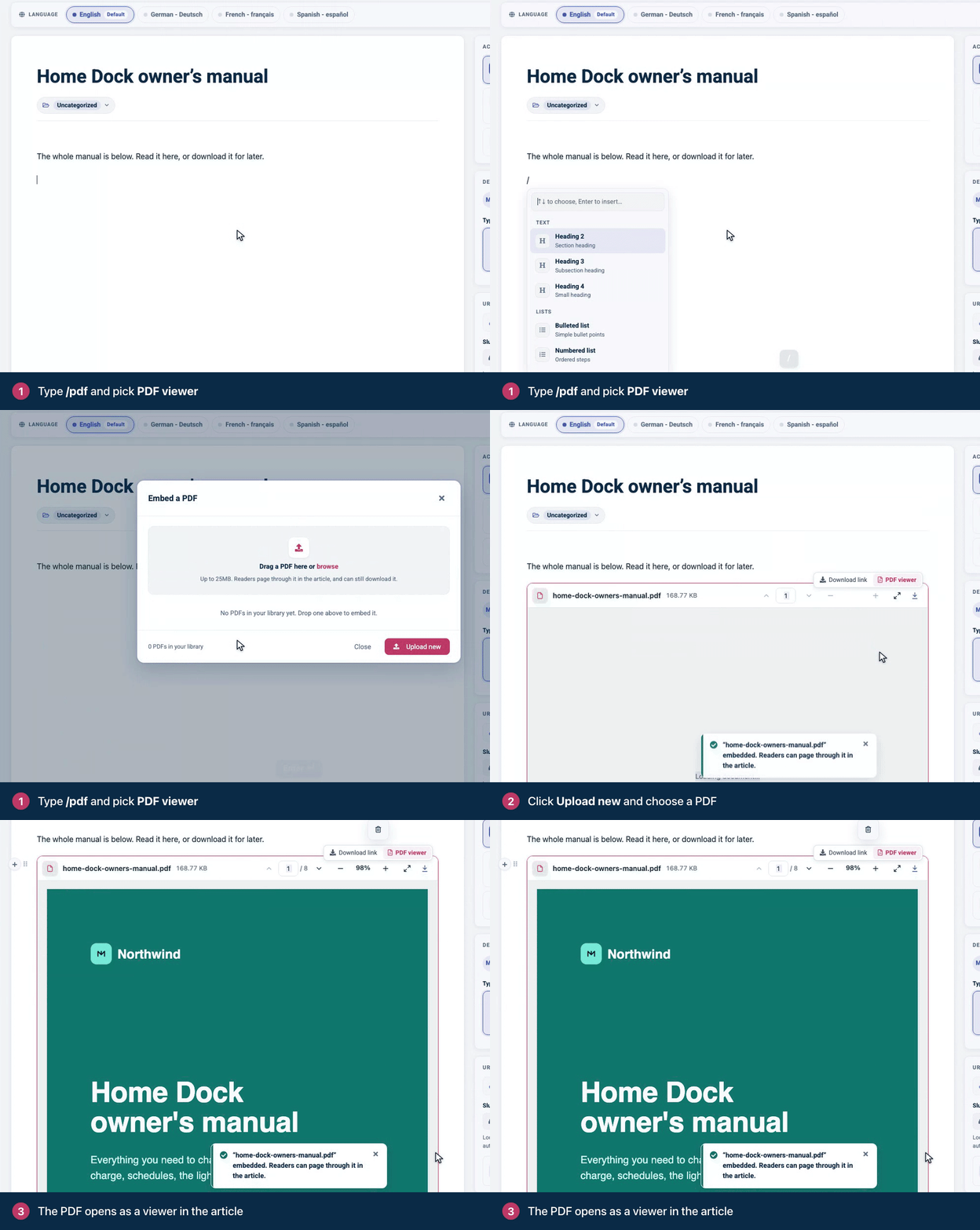
If the PDF is already in your library, the Embed a PDF window lists it. Click Embed next to the file.
You can also click the + to the left of a line and pick PDF viewer under Media.
The viewer in the editor is the one readers get. Click it once to select it, then scroll through its pages or try its buttons. Readers see the change when you publish or update the article, like any other edit.
Switch between a download link and the viewer
Every PDF you attach to an article can be shown either way, and you can change your mind at any time. That includes PDFs you attached before.
Point at the PDF attachment in the article. A switch appears at the top right of the block.
Click PDF viewer to show the document in the article, or Download link to go back to the compact link.
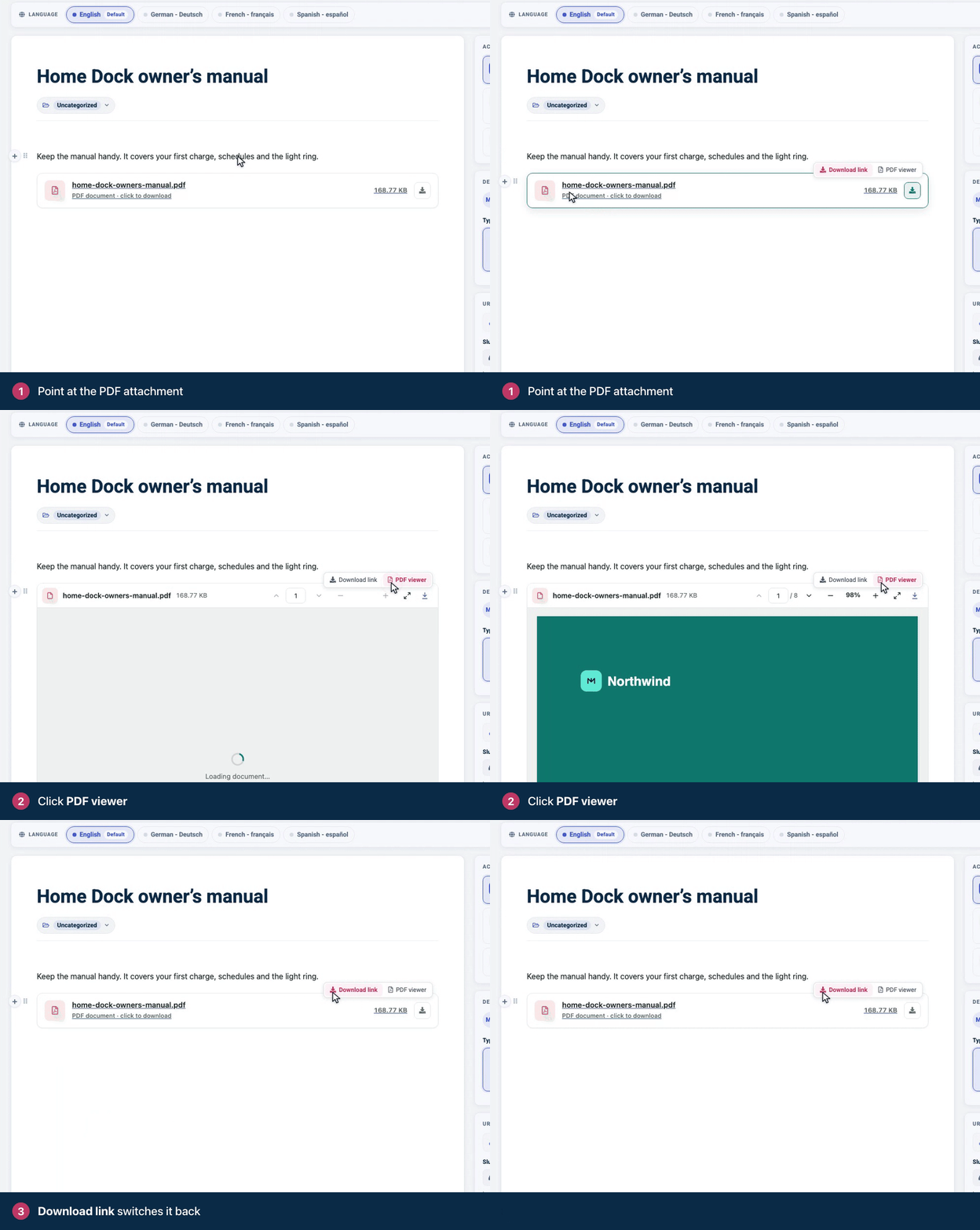
The switch shows on PDF files only. Other attachments stay download links. To remove the block or delete the file, see Attach files.
What readers can do in the viewer
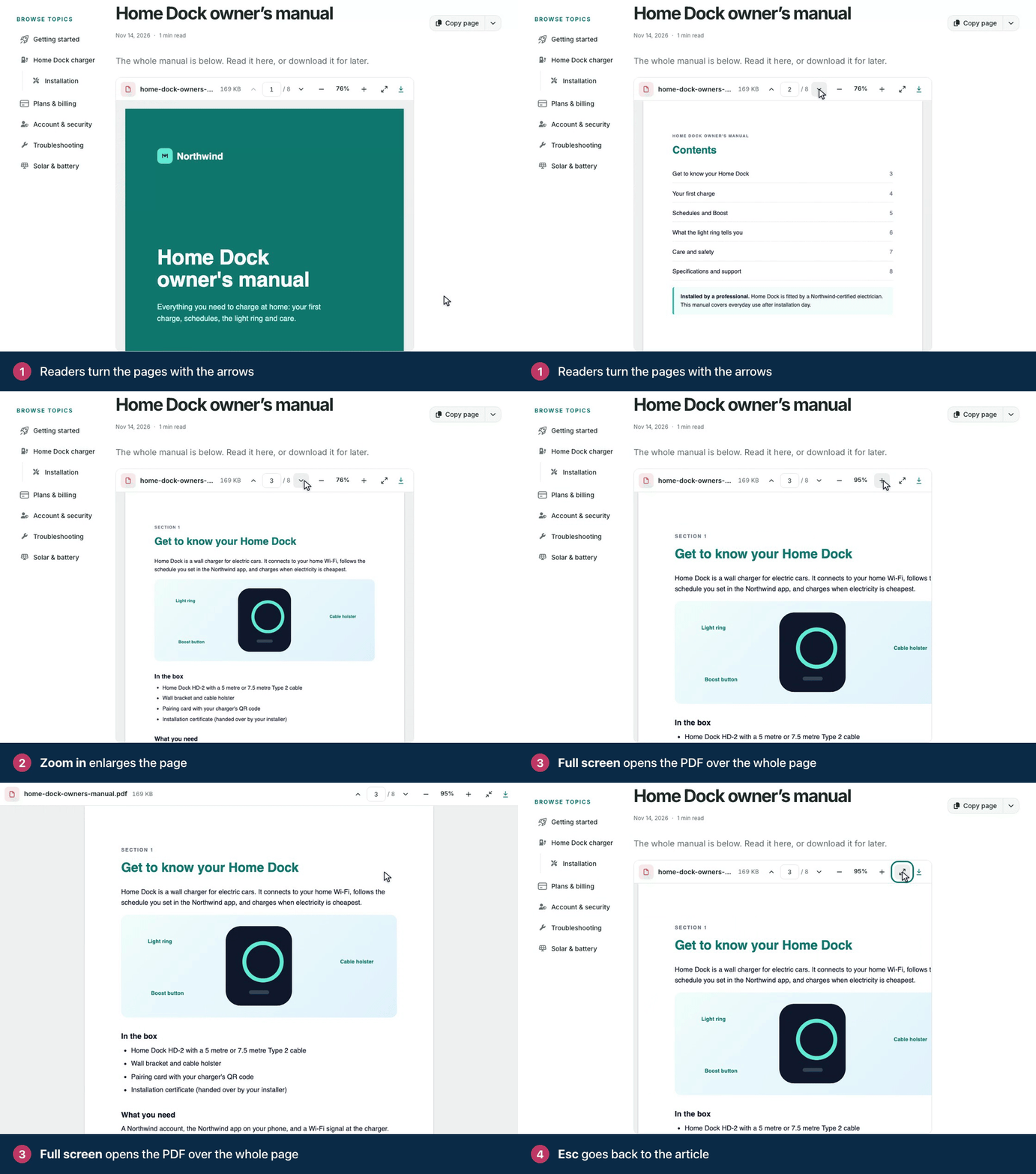
The toolbar's buttons are icons. Pointing at one shows its name.
Turn pages: scroll the document, click the arrows (Previous page and Next page), or type a page number in the page field and press Enter.
Zoom: Zoom in enlarges the page up to 400%, and Zoom out shrinks it down to 50%. The percentage between them is the Fit to width button: it puts the page back to the size it opened at.
Read it big: Full screen opens the document over the whole page. Exit full screen or the Esc key closes it.
Use the text and the links: readers can select and copy text. Links inside the document work, and links to other websites open in a new tab.
Keep a copy: Download saves the file.
The viewer's frame and toolbar take their colors and font from your help center's design, in light and dark mode, and the toolbar follows right-to-left languages. The pages themselves look the way the PDF was made. On a phone, the toolbar keeps its buttons and leaves out the file name. Every button has a name that screen readers announce, and readers can reach all of them with the keyboard.
The viewer always has a Download button, and the file keeps the web address it has as a download link. Embedding a PDF doesn't limit who can save it, and readers can select and copy its text even when the file itself restricts copying.
Where the viewer shows
Where the article is read | What readers get |
|---|---|
An article page on a help center that uses the new template editor | The viewer |
A help center that uses the classic template editor | The download link |
The widget | The download link |
An FAQ section | The download link |
A printed article | The download link |
Private help centers and private articles get the viewer too. A few more things to know:
A file the browser can't open falls back to the link. If the file isn't really a PDF, needs a password to open, or the reader's browser is too old, the reader gets the download link instead. In the editor, such a block says "This file could not be opened as a PDF, so readers get the download link instead."
There's no search inside the document. Your help center's search and AI answers don't read the text inside a PDF either. Put what readers need to find in the article itself.
Forms can't be filled in. A PDF with form fields shows as a document to read. Readers download it to fill it in.
The viewer's size is set for you. It takes the full width of the article and a height that suits the reader's screen. You can't resize it the way you resize an image.
Translate the viewer's buttons
The names of the viewer's buttons show as tooltips and are read out by screen readers. Owners and Admins can change their wording and translate them:
In the left menu, click Localization.
Under Interface translations, pick the language you want to edit.
Type
PDF Viewerin Search phrases…. Every phrase of the viewer starts with those words, and they all sit in the Article group.Type your wording and click Save changes.
See Translate buttons and labels for more, including which plans can translate into other languages.
Troubleshooting
"Choose a PDF. Other files can be added as a File attachment." The Embed a PDF window takes PDFs only. To add another kind of file, type /file and pick File attachment.
"Files up to 25MB work here." The file is too big. Compress it, or split it into smaller files.
Readers see a download link where you expected the viewer. Check the table above first: the viewer opens on article pages of the new template editor only. If it's missing there too, the reader's browser couldn't open the file. Open the article in the editor: a block that says the file could not be opened as a PDF needs a different file.
The switch doesn't appear. The switch is for PDFs, and it shows only while you point at the attachment or have it selected. If a file you know is a PDF never gets one, upload it again with a name that ends in .pdf.
Comments
Be the first to comment.